Guide
How to brief a video editor: what to send before the edit starts
An editor who gets a script and a folder of raw footage has to guess the rest: which shot goes with which line, how it should feel, what can't be shown. A one-page brief answers that before the edit starts.
The problem
A folder and a script leave a lot to guess

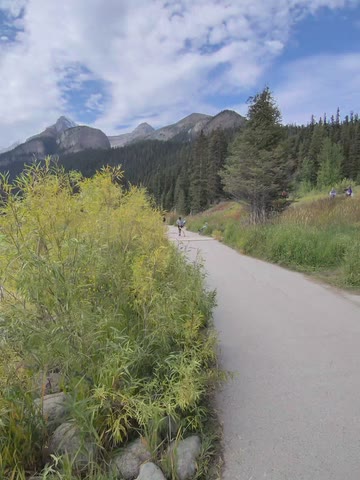
I'm Kyle. I'm not a coach or an editor. I built a tool for one part of this handoff, and the brief below works with or without it. If you are still deciding whether to hire, Video editing for coaches compares doing it yourself, hiring and tools, with prices from the vendors' own pages.
The brief
Seven things to send your video editor
The script, one idea per line
Break it where the idea changes, not where the sentence ends. Each line is one place a shot can go. Mark the line that matters most.
The footage, in folders named by shoot
A date and an event or place is enough:
2026-05 spring retreat,2026-08 workshop day,desk and office. Keep the talking-head take in its own folder. If the clips are still on your phone, How to organize B-roll on your iPhone covers sorting them before you copy them to a computer.Shots that must appear
Name the file and the line it belongs to, and say why. Keep the list short so the musts stand out. If it comes up empty, my guide to B-roll ideas for coaches has a worked example and a checklist of shots to film.
What must never appear
Clients or attendees who haven't agreed in writing to be shown. Names, charts and screens with someone's details. Anything from a private session.
References
Two or three videos with the pace and feel you want, and one sentence on what you like in each. Add one you don't want yours to look like.
Format and length
Where it will be posted, the shape (wide 16:9 or tall 9:16), a target length, and whether you want captions and music. Length and captions change the price on some plans: Video editor cost per video has the listed prices.
Review rounds
How many rounds are included, what each one is for, and who gives the notes. Send notes as one list with timestamps, not a string of messages.
The template
The brief, ready to copy
Paste it into an email or a doc and fill in the blanks.
VIDEO BRIEF

Working title:
Where it will be posted:
Shape and length: 16:9 or 9:16, about __ minutes
What a viewer should do after watching:

SCRIPT (one idea per line)
1.
2.
3.
The line that matters most: line __

FOOTAGE
Link to the folder:
- talking head:
- [date, event or place]:

MUST APPEAR
- Line __: [file name], because
- Line __: [file name], because

NEVER USE
- Anyone who hasn't agreed in writing to be shown
- Names, charts or screens with someone's details
- [clips or folders that are off limits]

LOOK AND FEEL
Like this: [link]. What I like in it:
Not like this: [link]
Captions: yes / no
Music: yes / no

REVIEW
Rounds included: __
First round is for: shot choices and structure
Last round is for: small fixes
Notes come from: [one person]
Notes sent as: one list with timestamps
First cut due:
Final due:
Optional
Send a rough cut with the brief
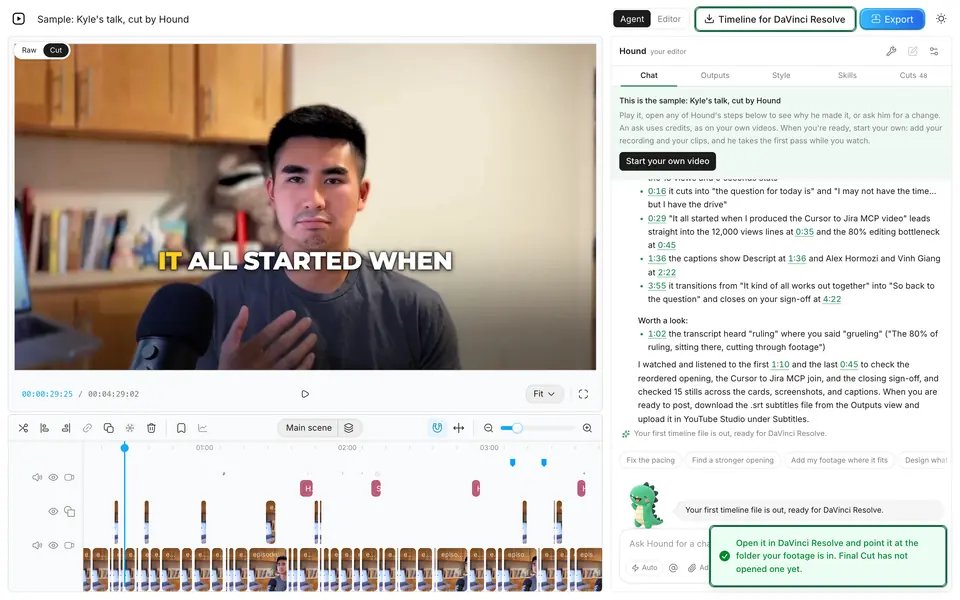
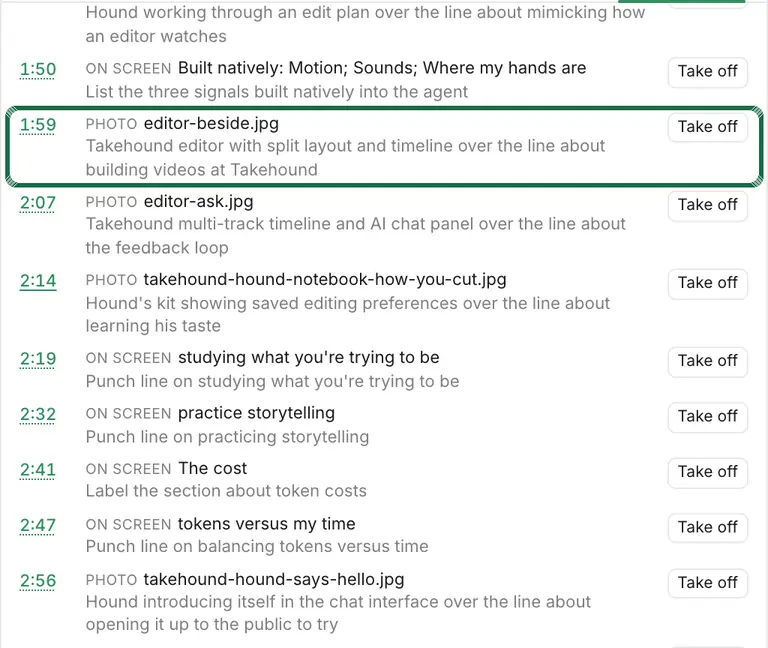
The slow part of that brief is number 3: matching clips to lines. Takehound, the browser editor I built, has an agent, Hound, who makes a first pass you can send with it. A transcript and a few stills aren't the cut, so on a talk he watches your cut as moving picture and sound, the way your editor would, before he changes anything and again after: he hears where every cut lands and sees what is already on screen. Add your recording and your own clips, photos, slides or screen recordings, press one button, and watch him cut long pauses, filler words and repeated takes, place your footage where you talk about it and put your key lines on screen. Every change has its reason in a feed, only your own footage goes in as B-roll, and where none of it fits, the line stays on you.
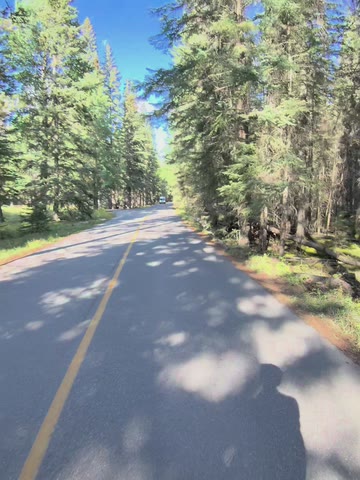
On a shot it placed
“A hiker pausing at a trail sign suggests stopping to choose what matters most.”
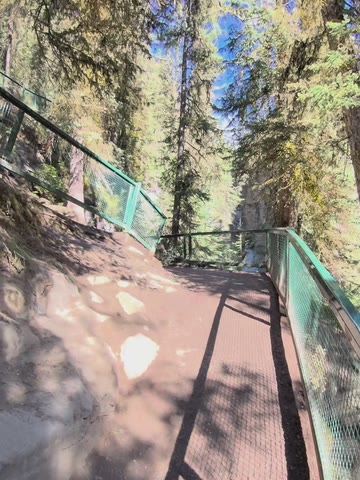
On a line where nothing fit
“No footage shows crossing things off, silencing a phone or turning something down, so this beat is left as a gap.”
Two of Takehound's notes on my own 50-second talk. That one was cut from my recording with the Mac version of Takehound.
What your editor gets
- A timeline file (FCPXML), from Takehound's Timeline for DaVinci Resolve button, that opens in DaVinci Resolve, not Premiere. Final Cut has not opened one. Resolve has a free version (Blackmagic's product page, read 2026-10-03).
- The reasons. Resolve drops markers, so the file also writes each note (why a clip or a line of words is there, your bookmarks, what to redo by hand) as a switched-off title, on tracks of their own above the rest. DaVinci Resolve 21.1 kept them: they sit on the timeline and stay off the picture (checked 2026-10-11 and 2026-10-13).
- Your cuts and clips placed, and in Resolve the words on screen come in as titles your editor can edit. The designed look of the words on screen, the cleaned sound and the colour grade are not in the file: it links to your recording as it was shot. The MP4 you export from the browser has all three, so send it too as the reference.
- No footage. Your browser is never told where your files sit on your computer, so the file points each clip at a made-up folder named Takehound. Send your footage folder too: the clips come in missing, and your editor relinks them once by pointing Resolve at wherever they saved it. How to import FCPXML into DaVinci Resolve or Final Cut covers opening the file.
It doesn't replace the brief. Your editor still needs the never-use list, the references and the format. For you, the lines it leaves on you double as a list of what to film next.
If your video is a talk, what a talking head video is shows what a first pass and one request changed on a real talk, from 7:23 down to 6:22.
Run it only on footage that's cleared to show. Your sound is transcribed on Takehound's server, and the words, small stills and a small copy of the cut, picture and sound, go through it to the AI models that edit. It keeps none of it, nothing trains a model, and an account keeps your projects: privacy has the details.
Give your editor a first pass to start from
Takehound is a tool you or your editor run yourselves, not an editing service. Hound does the grunt work of the first pass; you steer him in plain words, undo any step or edit by hand, and he learns how you cut. The story, the taste and the final cut stay with you and your editor.
No stock, nothing generated. Sign in with Google for a free first video.
See Takehound for coachesQuestions
What should I send my video editor?
Seven things: the script with one idea per line, the footage in folders named by shoot, the must-use shots, what must never appear, two or three references, the format and length, and how review will work. The template above has a slot for each.
How long should a video editing brief be?
One page for one video. If a section keeps growing, move the detail into the script or a reference link.
How do I keep a clip out of the final video?
Leave it out of the folder you send, or name it under “never use” in the brief. Footage that shows clients or attendees goes in only when everyone shown has agreed in writing.
What if my editor uses Premiere?
The brief works with any editing app. Takehound's timeline opens in DaVinci Resolve, not Premiere, so send the brief on its own, or with the MP4 Takehound exports from the browser as a reference. Tools that hand off to Premiere are in AI B-roll from your own footage.
More guides
- How to import FCPXML into DaVinci Resolve or Final Cut Pro
In Resolve, File > Import > Timeline. In Final Cut Pro, File > Import > XML. Then relink missing clips to your footage folder.
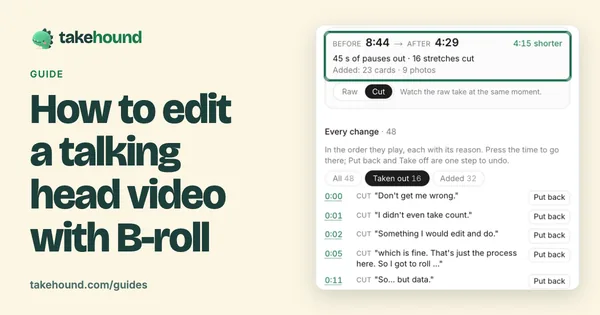
- How to edit a talking head video with B-roll
When to cut away or stay on the speaker, shown cut by cut on one real 50-second talk.
- Retreat and event recap video: shot list and script
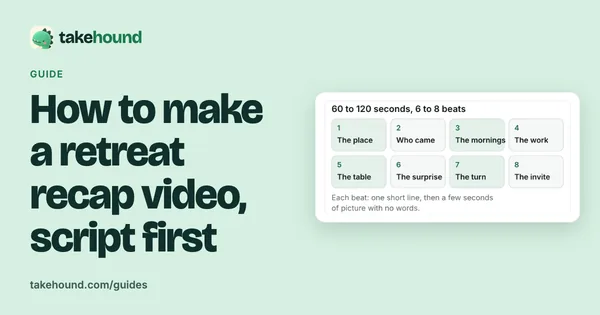
How to plan, film and script a 60 to 120 second retreat or event recap from your own footage.