Guide
Can Descript add B-roll from your own footage?
Yes. You can lay your own clips over your talk by hand, and Descript says its AI co-editor can look in your Media library when you ask it for B-roll. Here is what Descript's own pages say, how to do it by hand, and where the tool I built differs.
Read on 2026-10-03
What Descript does with B-roll today
- Your own clips go in as layers. You drag a video from your project files onto the script, the scene editor or the timeline. Descript help: Add layers, read 2026-10-03.
- A media library holds clips you reuse across projects. Descript names B-roll as one use for it. Descript help: Media library, read 2026-10-03.
- Search matches a media file by its file name, and a recording by the words spoken in it. Descript help: Find anything in your drive, read 2026-10-03.
- Stock is one source, not the only one. The Media panel has a My Media tab for your files beside the stock tab. Descript help: Media panel, read 2026-10-03.
- Quick Design can add B-roll for you. Descript says it “Pulls from stock and AI-generated media”. Descript help: Quick Design, read 2026-10-03.
- Underlord, the AI co-editor, is in beta. Descript says that when you ask it for B-roll, it looks in stock or in your Media library, or generates a clip, and shows you the options in the chat before it adds any. You can also attach project files to a prompt as context. Descript feedback board: A.I. B-Roll Suggestion (Descript's reply of 2026-09-25), Descript help: Underlord and Prompting, read 2026-10-03.
What those pages do not say: how Underlord chooses a clip from your Media library, by its file name or by what is in the picture.
On 2026-10-03 I couldn't find a page for that step in Descript's help center. Try it on a short project, and check each option before you accept it.
By hand
How to add your own B-roll in Descript
These steps follow Descript's help pages. Menu names change, so check the linked page.
- Rename your clips first. A phone calls a clip IMG_2776.mov, and search goes by file name. Put what is in the shot into the name.
- Upload them to the Media library, one folder per shoot. A first upload uses your plan's media minutes. Reusing the file from the library does not. A right-click renames a file there too. Descript help: Media library, read 2026-10-03.
- Mark the lines that need a picture. Type / in the script to start a scene at each one. Add a Media placeholder there and write a note saying what should go in it. Descript help: Scenes and Placeholder layers, read 2026-10-03.
- Fill each placeholder. Search the library for the words in your file names, add the clip to the project, then drag it onto the placeholder. Descript help: Import media library files, read 2026-10-03.
- Check where each clip starts and ends. Drag the edge of a layer in the timeline to trim it. If the clip itself is wrong, Replace Media swaps it and keeps the edits on it. Descript help: Layer and clip overview and Replace media, read 2026-10-03.
- Leave some lines on you. A cutaway that doesn't fit is worse than your face.
-
A file name search can find
place_what-happens_framing.mov
- Before
- IMG_2776.mov
- After
- lake-louise_lake-from-above_wide.mov
- More
- retreat-2026_arrivals_wide.mov
office_hands-writing-notebook_close.mov
workshop_empty-room-before-start_wide.mov
Use the words you would type while reading your script. If clients or attendees are in a clip, use it only with their consent.
Not sure which shots you are missing? B-roll ideas for coaches shows what one 50-second talk asked for, line by line.
The difference
Where Takehound differs
I built Takehound, so weigh this part. It is not a Descript add-on and it does not replace Descript. What follows compares what each one says it does. It is not a test of both on the same footage. Here is Takehound on one line of a script.
-
One line, my own trip footage · Mac version
“Lake Louise was bluer than any photo of it.”
- File name
- IMG_2776.mov
- Its description
- “A serene view of a turquoise lake nestled between towering mountains…”
- Its reason
- “A wide view of a turquoise lake between towering mountains shows just how vivid the water is.”
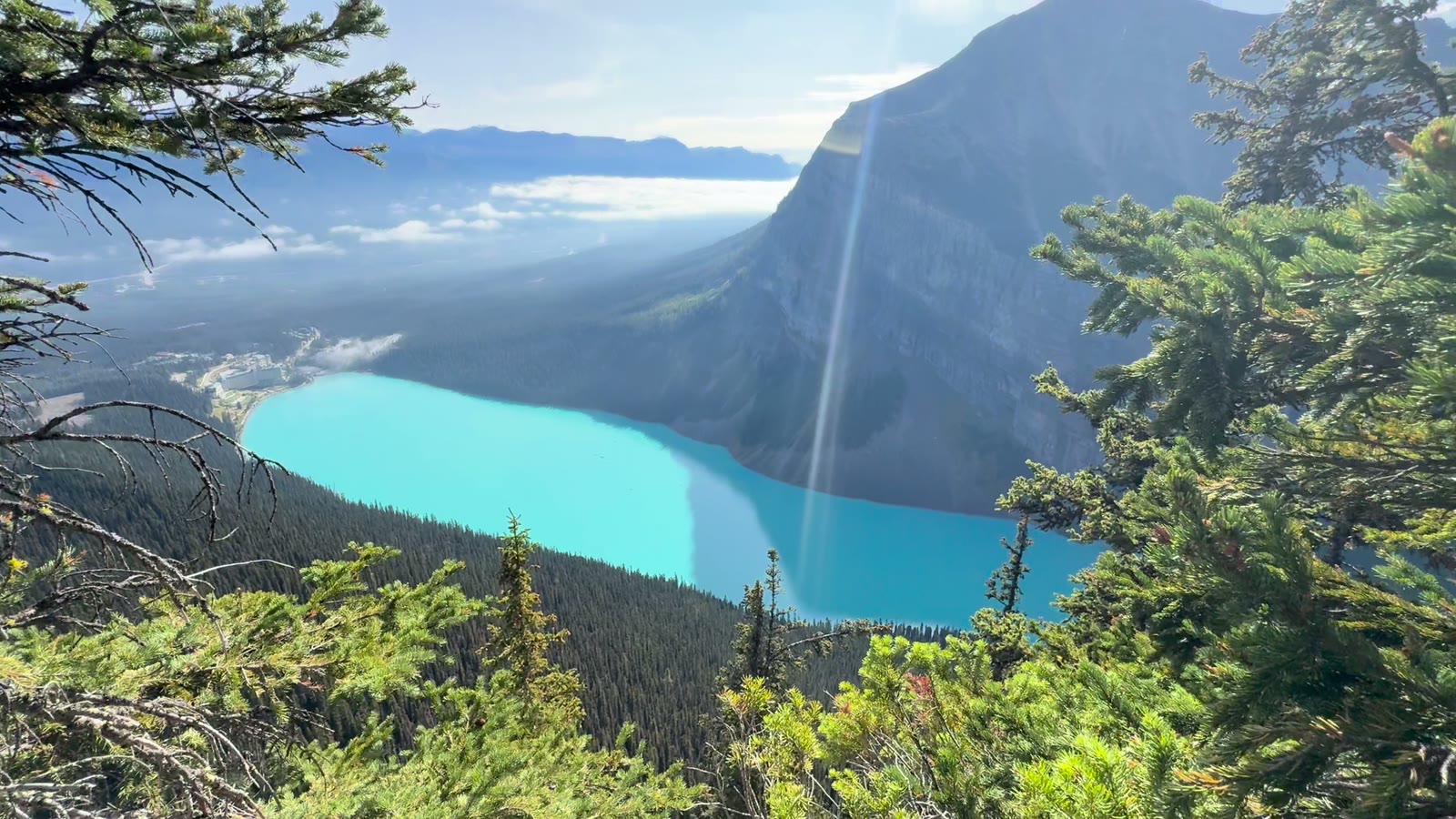
One line of a 5-line script, with footage from my own trip, since I'm not a coach. In the browser version, small stills pass through Takehound's server to Anthropic's API to be described. Your video files never upload.
-
Picking the clip
- Descript
- By hand, you find the clip by file name and choose it yourself. Or you ask Underlord, which Descript says looks in stock or your Media library, or generates a clip. Quick Design chooses from stock and generated media. Descript help: Find anything in your drive, Descript feedback board and Quick Design, read 2026-10-03.
- Takehound
- It uses only footage you filmed. It describes what is in a shot from small stills, so IMG_2776.mov can keep its name. It proposes one of your shots for each script line it can, with a reason. Where nothing fits, the line stays on you.
-
What it starts from
- Descript
- Your recording, which it transcribes. Descript help: Media library, read 2026-10-03.
- Takehound
- A pasted script, not a recording. Your Descript transcript can be that script. Cutting from the recording itself is the Mac version only.
-
Where you finish
- Descript
- In Descript. On some plans it can also export a timeline for another editor. Descript help: Timeline exports, read 2026-10-03.
- Takehound
- In DaVinci Resolve (free) or Final Cut, from a B-roll timeline (FCPXML). The timeline holds the B-roll only, so you lay it over your take there. Not Premiere. On Windows you relink the media in Resolve. Resolve's free version: Blackmagic's product page, read 2026-10-03.
Descript does not list timeline files among the files it imports.
It lists audio, video, image and PDF files. Descript help: Supported file types, read 2026-10-03. If you want to finish in Descript, the steps above are the way.
For the other tools that work with your own clips, see AI B-roll from your own footage.
If picking the clips is the slow part
Takehound does the logging, finding and placing from footage you filmed, and gives a reason for each pick. The story, the taste and the final cut stay with you.
You finish in DaVinci Resolve or Final Cut, not in Descript. No stock, nothing generated. Free invite-only beta, no card.
See Takehound for coachesQuestions
Can Descript add B-roll from my own footage?
Yes. You add your own video as a layer over the script, from your project files or your Media library, and choose the clip and the spot yourself. Descript also says Underlord, its AI co-editor in beta, can look in your Media library when you ask it for B-roll. (Descript help: Add layers and Descript feedback board, read 2026-10-03.)
Does Descript only use stock footage for B-roll?
No. Stock is one option in a placeholder's Add Media menu, beside adding your own file, recording, and generating media. (Descript help: Placeholder layers, read 2026-10-03.)
Does a Takehound timeline open in Descript?
No. Takehound exports a B-roll timeline for DaVinci Resolve or Final Cut. Descript's list of supported imports is audio, video, image and PDF files, with no timeline format on it. The timeline is not for Premiere either. (Descript help: Supported file types, read 2026-10-03.)
Can I use Takehound if I edit in Descript?
Only if you are willing to finish in DaVinci Resolve or Final Cut. Descript lists timeline export formats for both on its Creator, Business and Enterprise plans, so check which formats your plan includes. I have not tried the two together. (Descript help: Timeline exports, read 2026-10-03.)
More guides
- How to edit a talking head video with B-roll
When to cut away or stay on the speaker, shown cut by cut on one real 50-second talk.
- AI video editor with your own footage: how to choose
Four kinds of AI video editor for your own footage, a decision table, and five questions to ask.
- B-roll ideas for coaches: the shots your script asks for
What one real 50-second talk asked for, line by line, and a checklist of 20 shots to film or find in your camera roll.